


Archiving and reactivating learners
The instructions below use the admin functions in Catalyst (rather than EPIC). See how to activate Catalyst admin functions.
Archiving a learner
- Log in to Catalyst.
- Select Admin view at the top right of the page.
- Choose the Organization the learner is in.
- You'll see a list of your active learners. Click the learner's name.
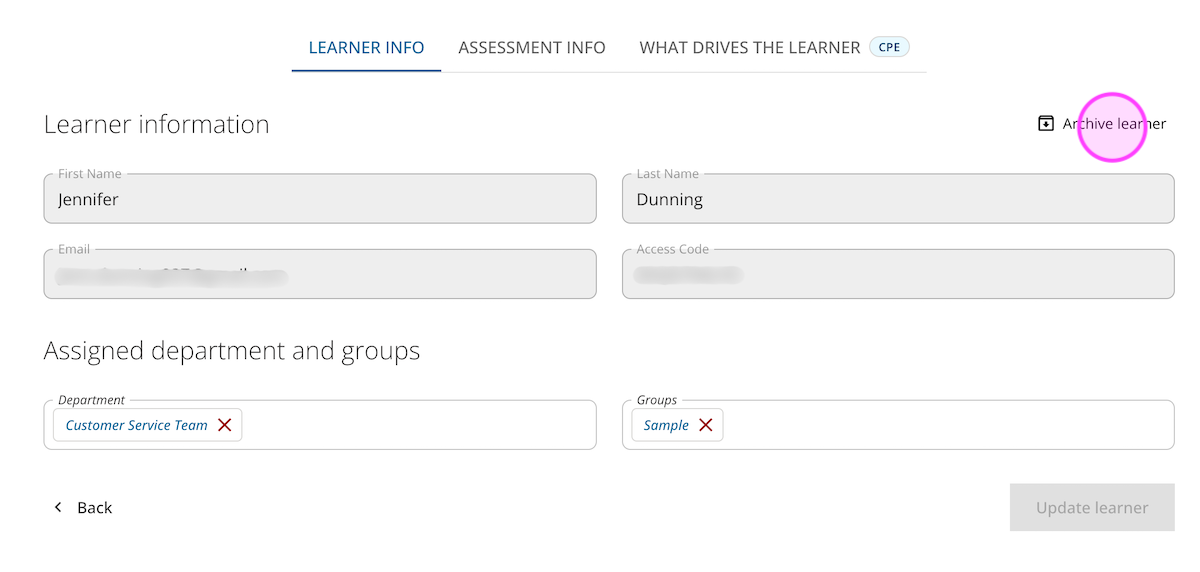
- Click Archive learner at the top right of the learner page.
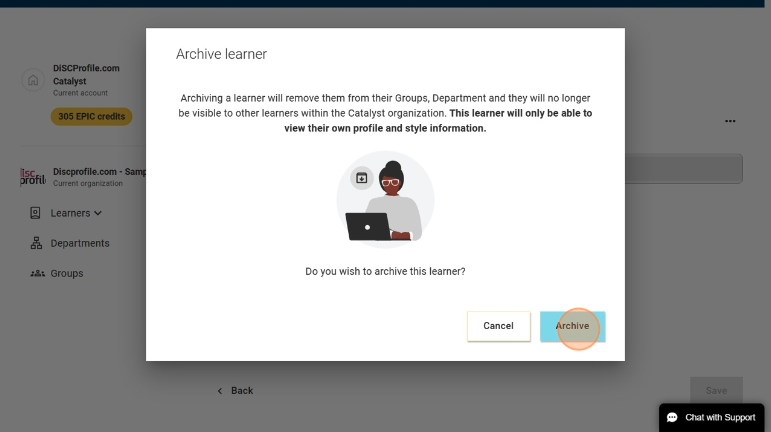
Archiving a learner will remove them from all groups and departments. They will only be able to log in and see their results, but they will not be able to see others inside the organization. - You’ll get an “Are you sure?” message. When you are ready, click Archive.
Reactivating a learner
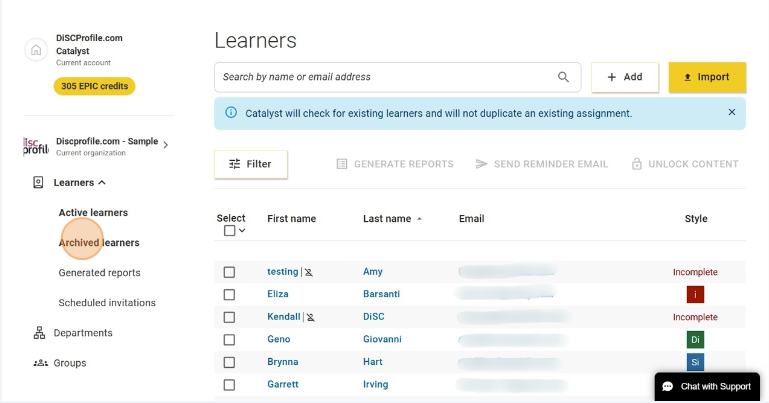
- Under Learners in the menu on the left of your admin dashboard, select Archived learners.
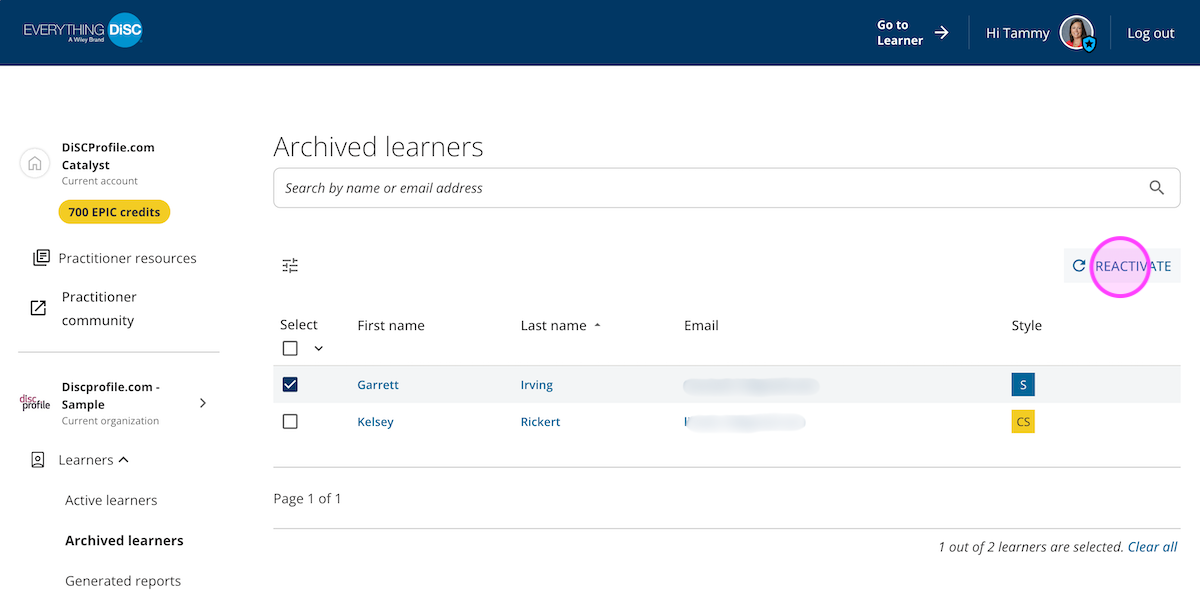
- Click the checkbox next to the learner's name.
- Click Reactivate.
- Add more learners if desired, then click Continue.
- Click Activate.
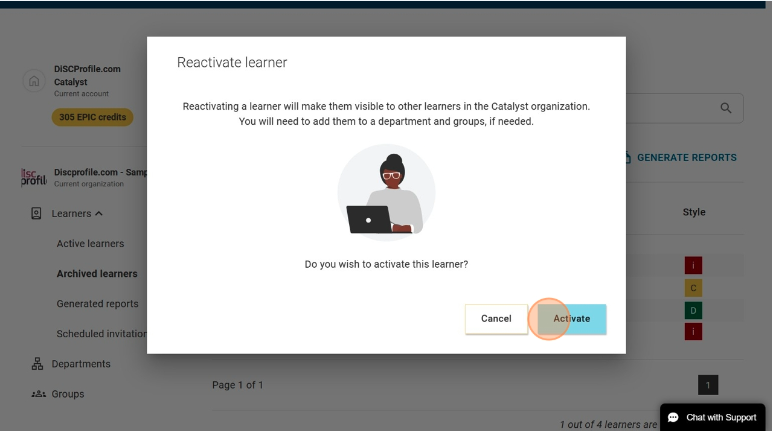
You will need to add the learner back into any groups they were previously part of and add them back into their department.