

Adding learners in bulk
Import a group of learners to Catalyst
The instructions below use the admin functions in Catalyst (rather than EPIC). See how to activate Catalyst admin functions.
See also: adding learners one by one
Instructions
- Log in to Catalyst and select Admin view at the top right.
- Select the Organization you want to add learners to.
.jpg)
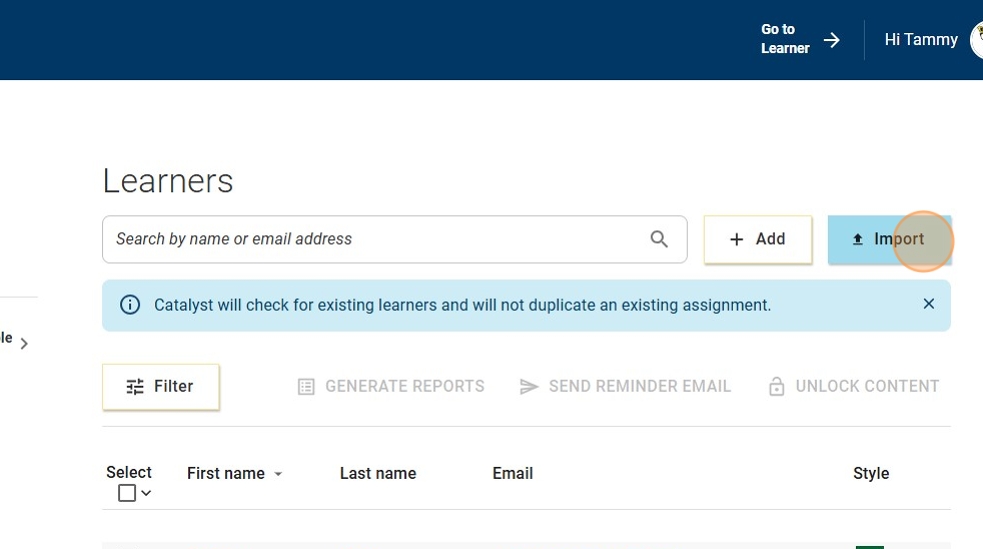
- This will take you to the learners page. Click Import.
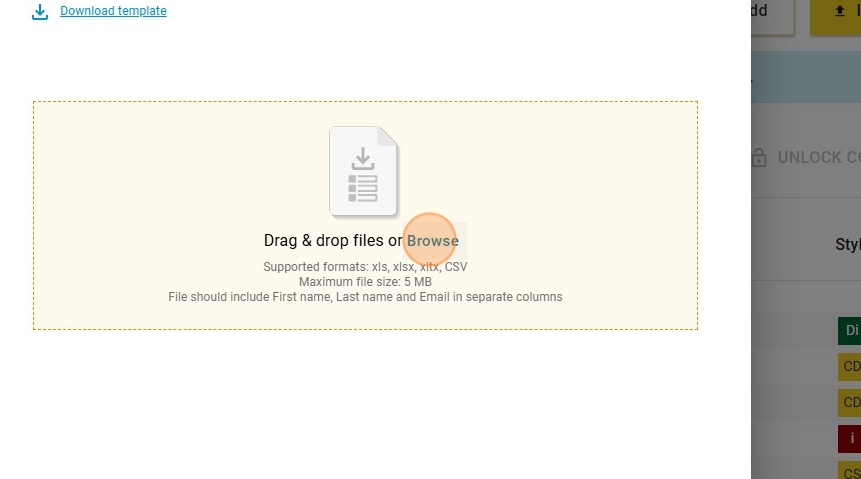
- Save the downloadable Excel template to your computer.
- Fill out the Excel template with your learners' information and save it to your computer.
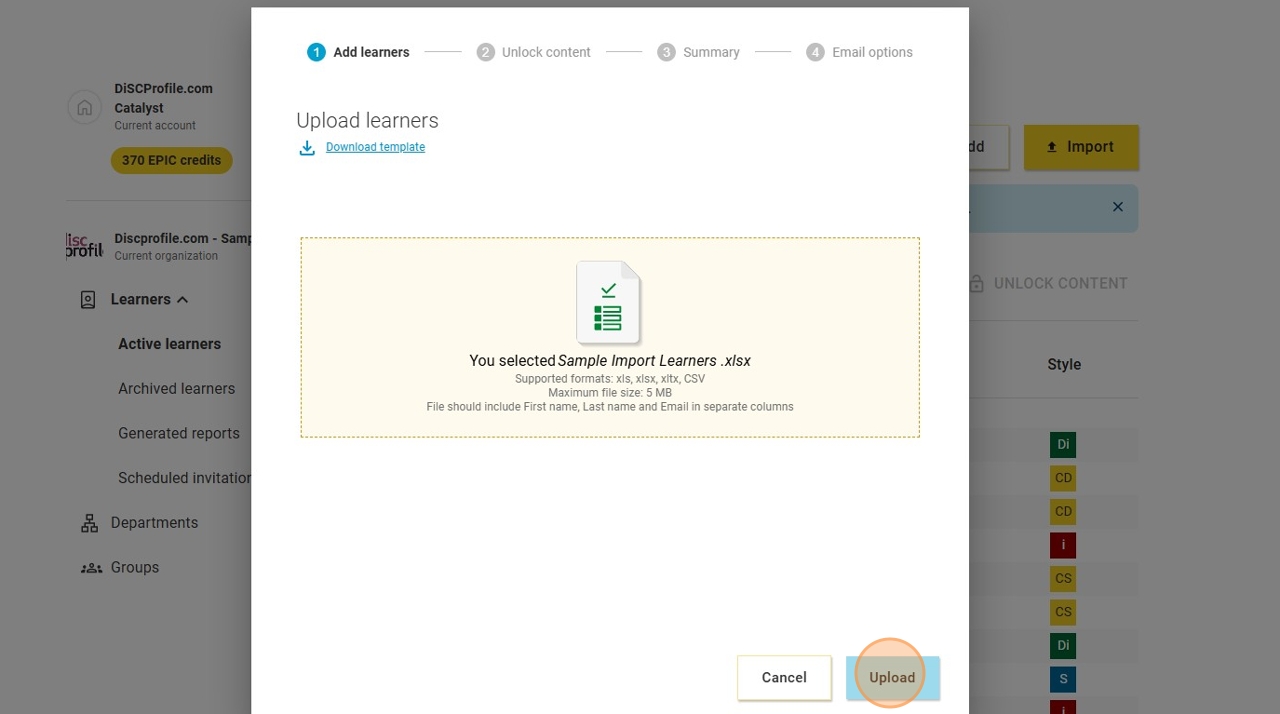
- Drag & drop or browse to select your completed Excel doc.
- Click Upload.
- Verify that your list is correct.
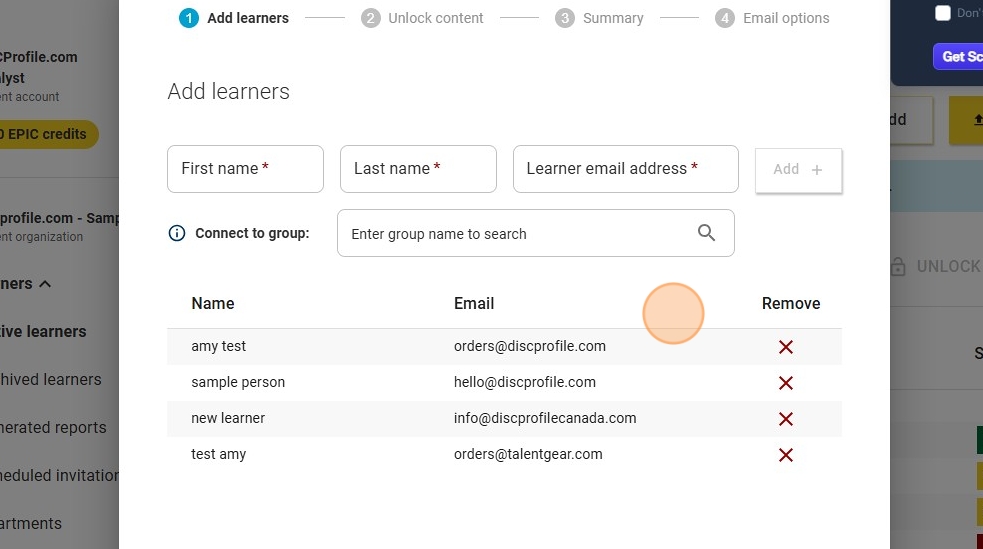
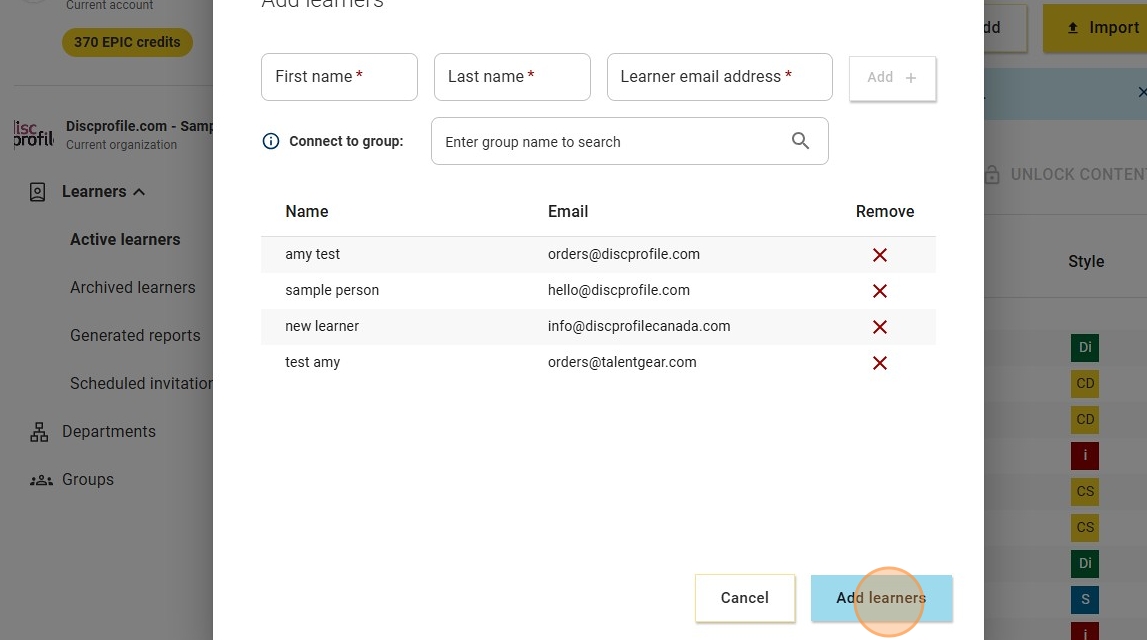
- If you need to add more learners who weren't in the Excel file, use the name and email address boxes to add them to the list.
- From this screen, you can add learners to a group. If you do not already have a group created, you can add one.
- Click Add learners.
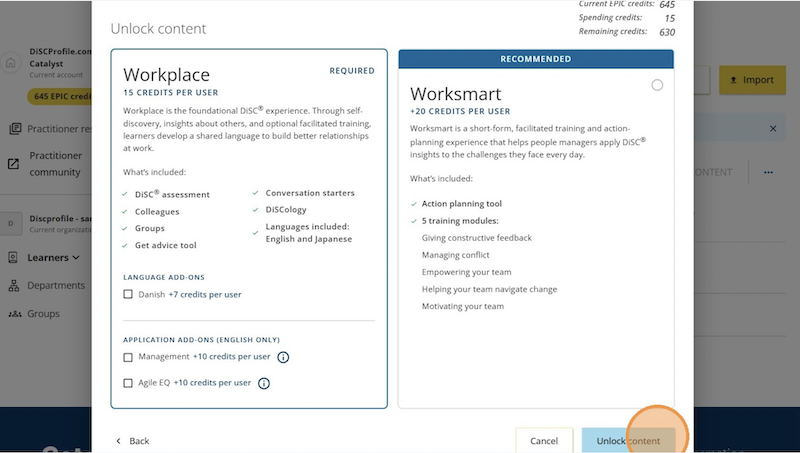
- Decide what additional content you would like to assign your learners. Everyone starts with Workplace, and you can unlock additional content now or later. Once you've made your selections, click Unlock content.
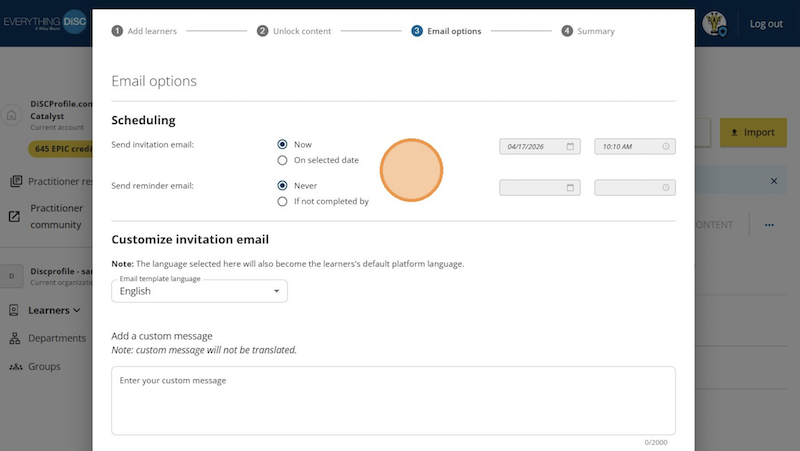
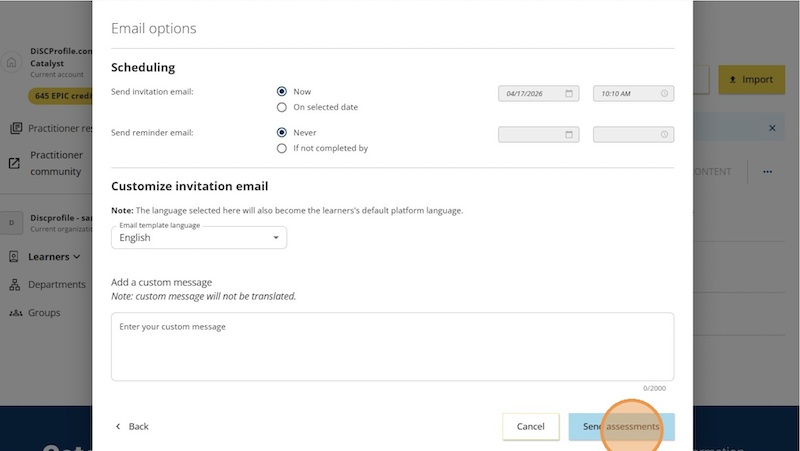
- Choose when you would like the emails with links to be delivered and if you would like to set a reminder for those who have yet to complete by a specified date. Type any additional information you want to include in this email in the Custom message box. We recommend including: What program this is for, when to complete the assessment by, and who to contact with questions.
- Click Send assessments.
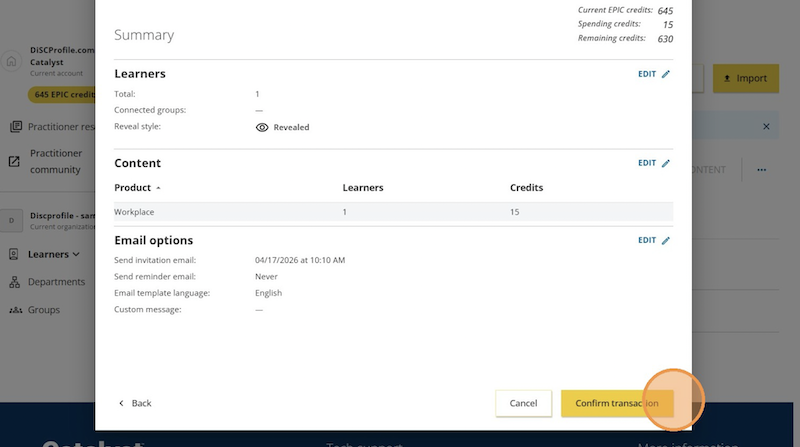
- Review to ensure you have the correct number of learners and the information is to your liking, then select Confirm transaction. This will queue up the codes to be sent at the specified date and time.