

Moving learners into and out of departments
This page covers how to add learners to departments in Catalyst and remove them. See also: Creating and editing departments.
The instructions below use the admin functions in Catalyst (rather than EPIC). See how to activate Catalyst admin functions.
Instructions
- Log in to Catalyst.
- Click Admin view (top right).
- Select the Organization you will be working in today.
.jpg)
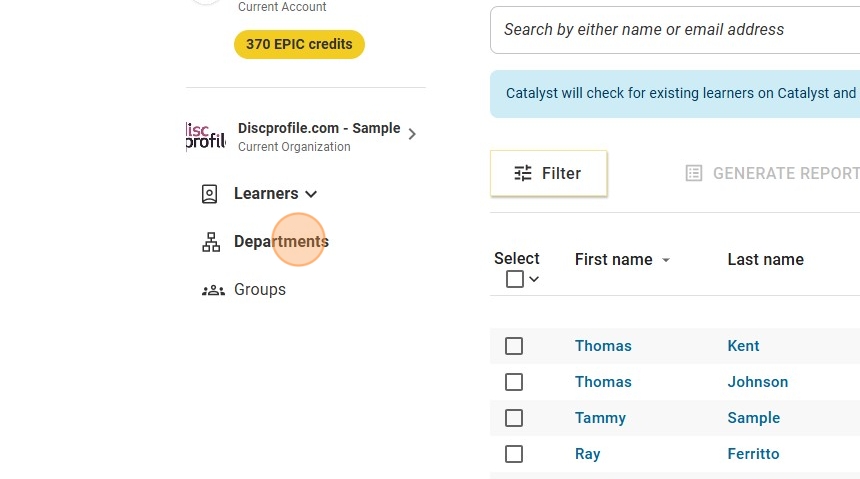
- Select Departments from the menu on the left.
Adding learners to departments: option #1
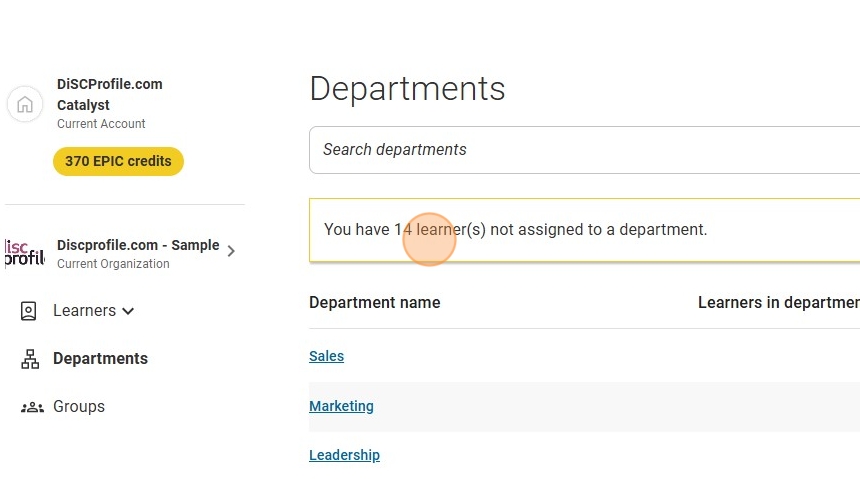
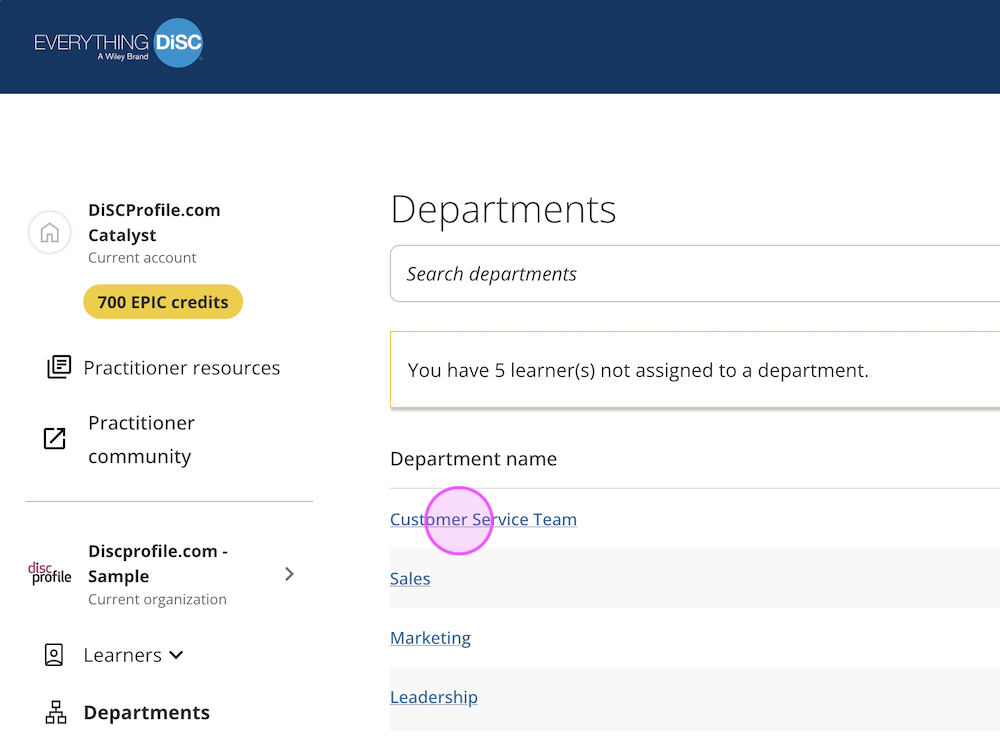
- If you have learners not assigned to a department, you will see a message alerting you to that on the Departments page.
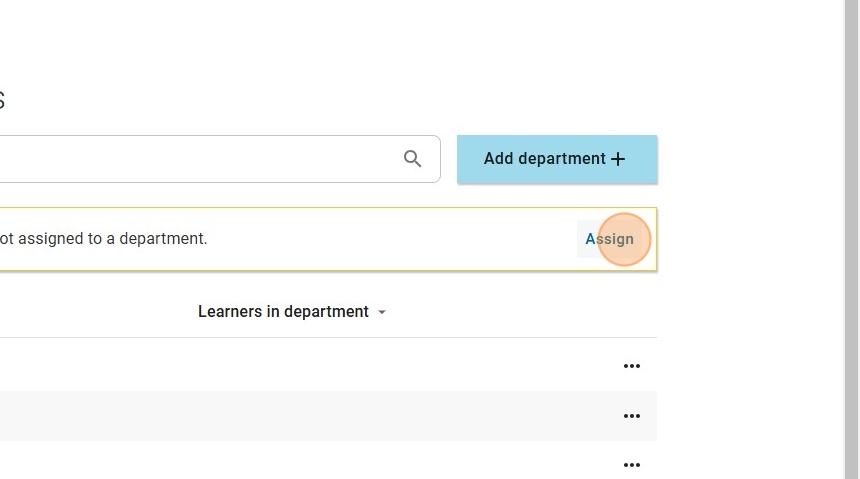
- Click Assign.
- Start typing the name of the department you would like to add the learner(s) to.
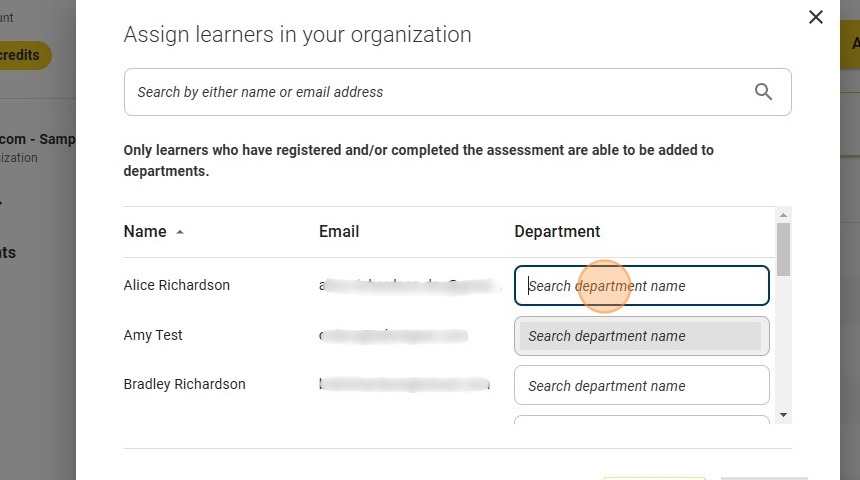
- Select the department you're looking for from the auto-generated list.
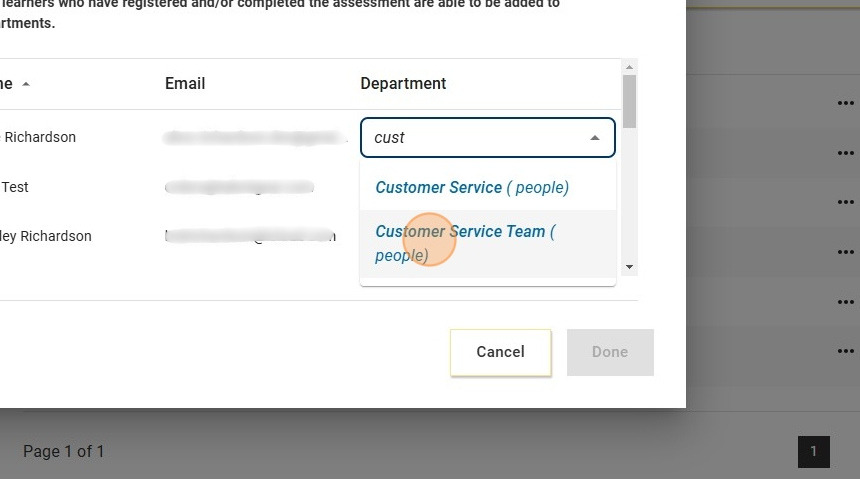
- Repeat this process for each learner who needs to be added to a department.
- NOTE: If a learner's “Search department name” box is gray, it means they haven't completed the assessment, so they can't be added to a department yet.
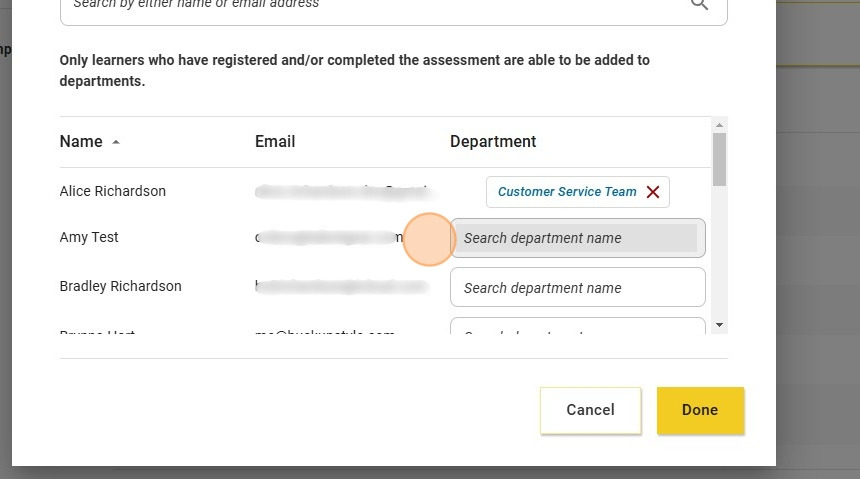
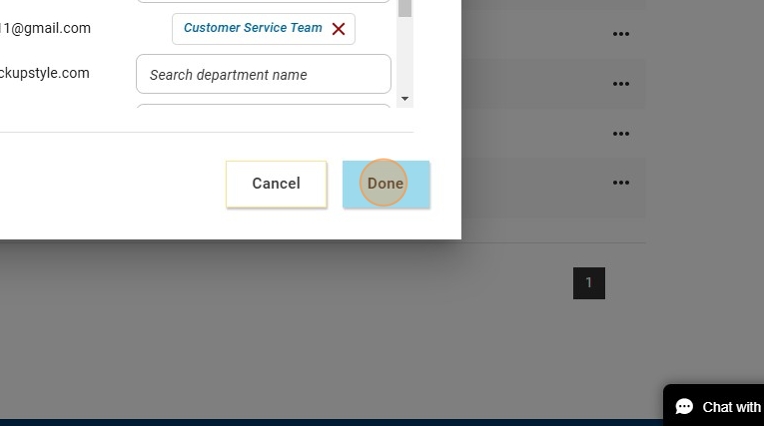
- Once you've updated the departments of all learners who need updating, click Done.
Adding/removing learners: option #2
- From the Departments page, click on the name of a department.
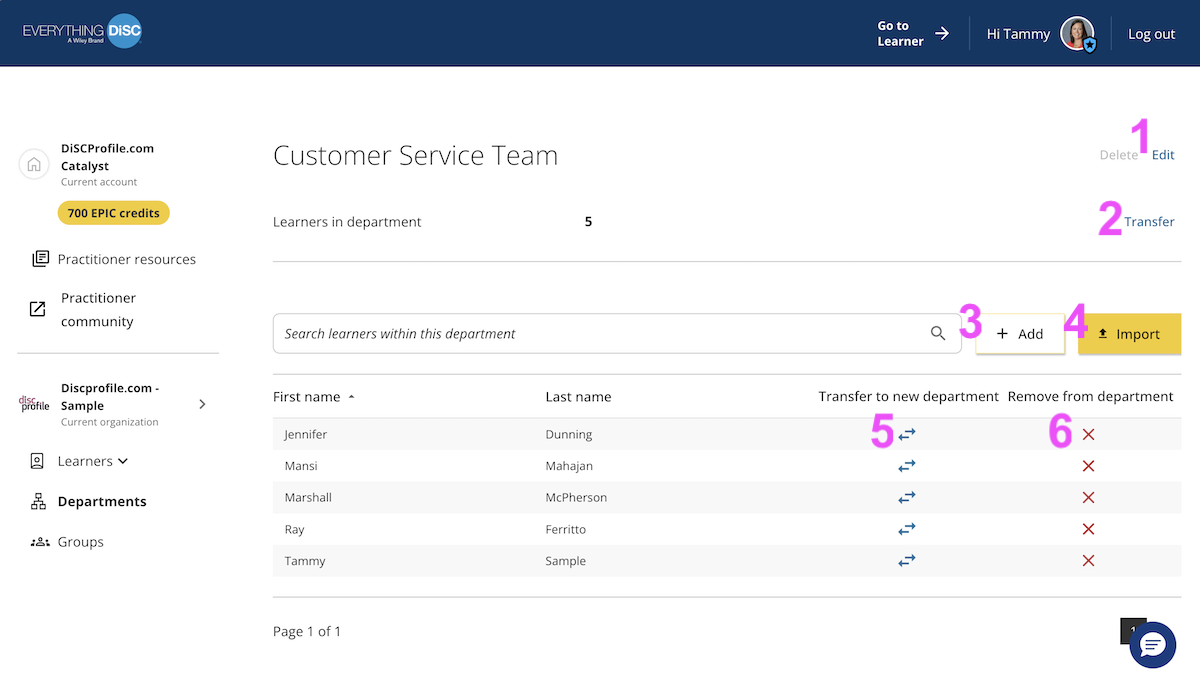
- On that department's page, you have the following options (from top to bottom):
- Change the name of the department
- Transfer all learners to a new department
- Add learners
- Import learners
- Transfer learners individually to a new department
- Remove learners from the department
Adding/removing learners: option #3
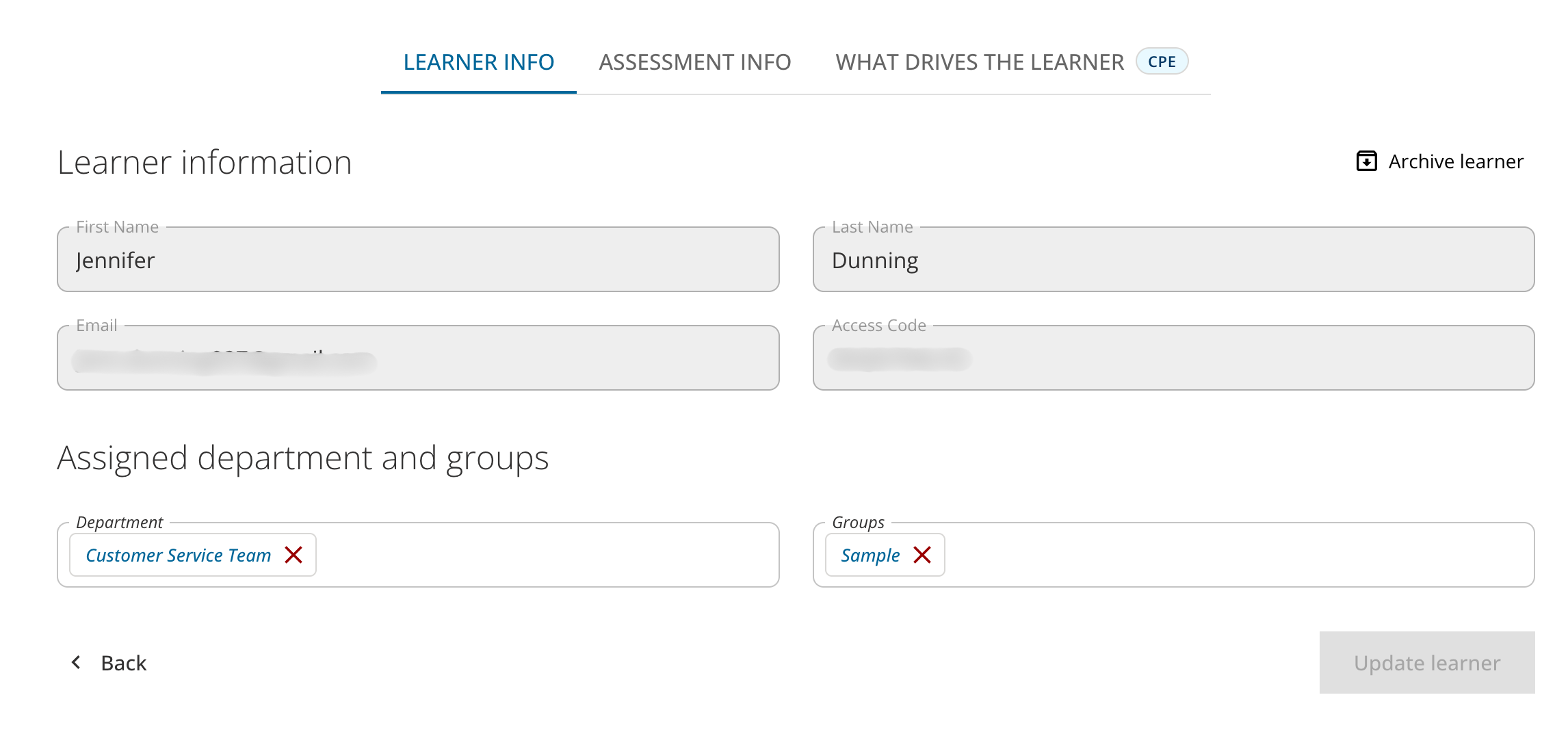
- From the Active learners page, click on a learner's name.
- This will take you to the Learner information page, where you can see that learner's assigned department and groups, add them to new ones, or remove them.