

Creating and editing groups
For learners
These instructions are for Catalyst learners. If you are an admin, see instructions for creating and editing groups in admin view.
Instructions
- Log in to Catalyst.
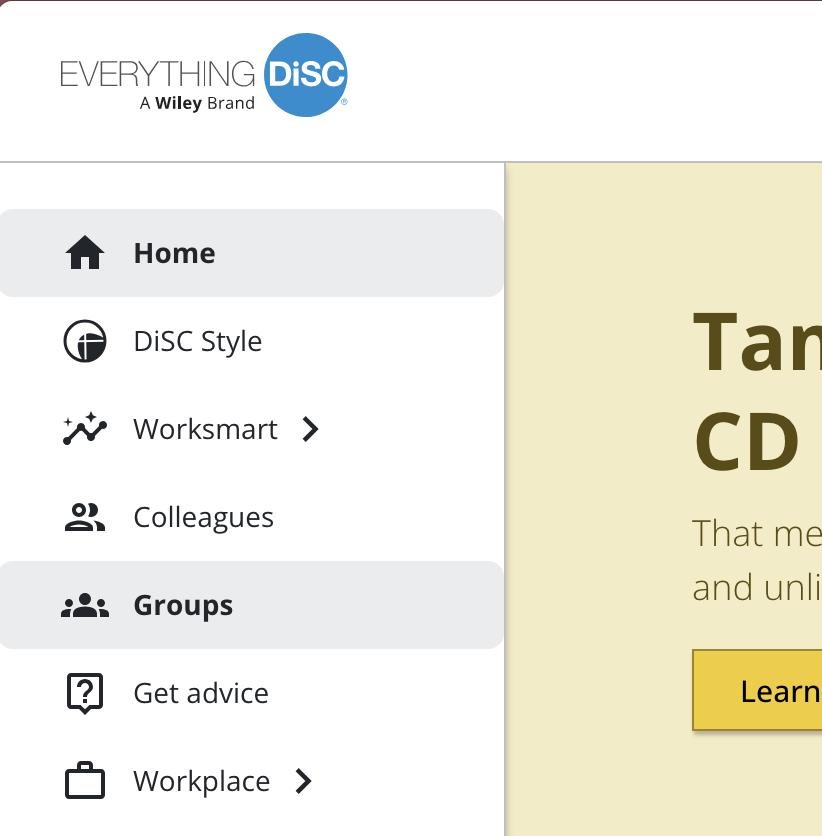
- Select Groups from the menu on the left.
Creating a new group
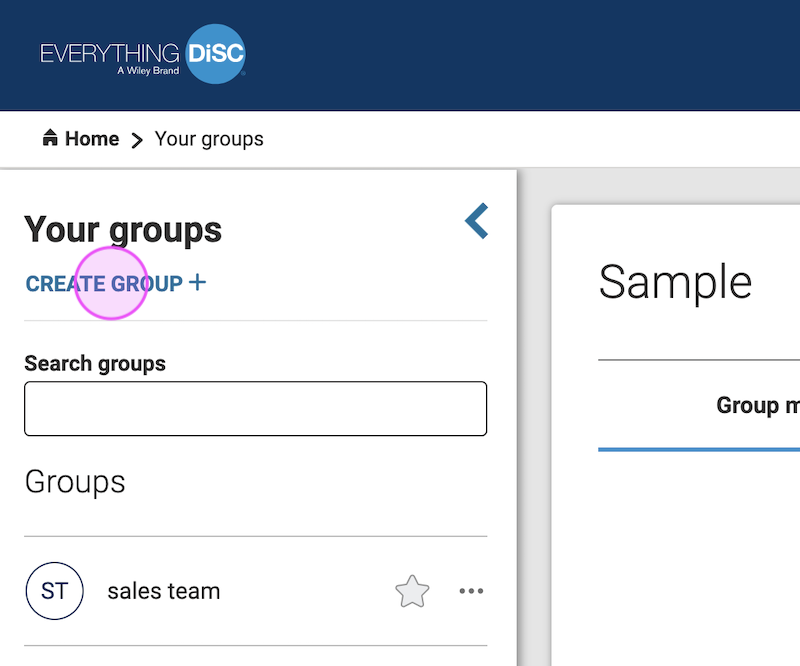
- Under Your groups on the left, select Create group +.
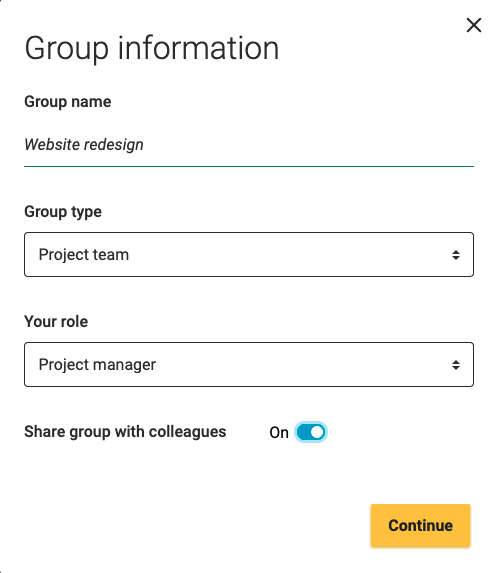
- Fill in the information for your new group (name, type, your role). Choose whether you want to share this group with the people in it, or have it viewable only by you. Click Continue.
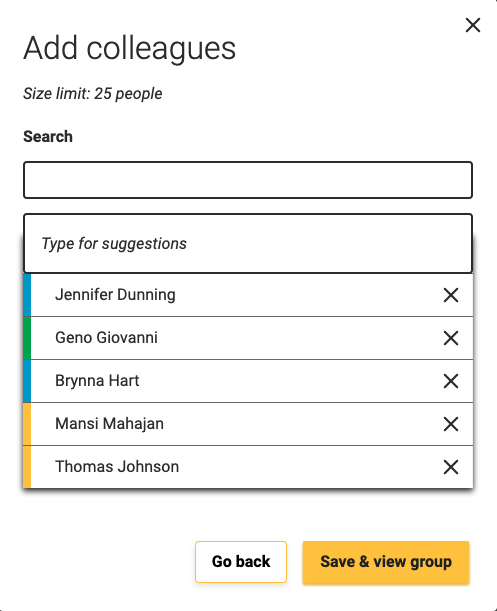
- Add colleagues. Names will auto-suggest as you start typing. When finished, click Save & view group.
Editing groups
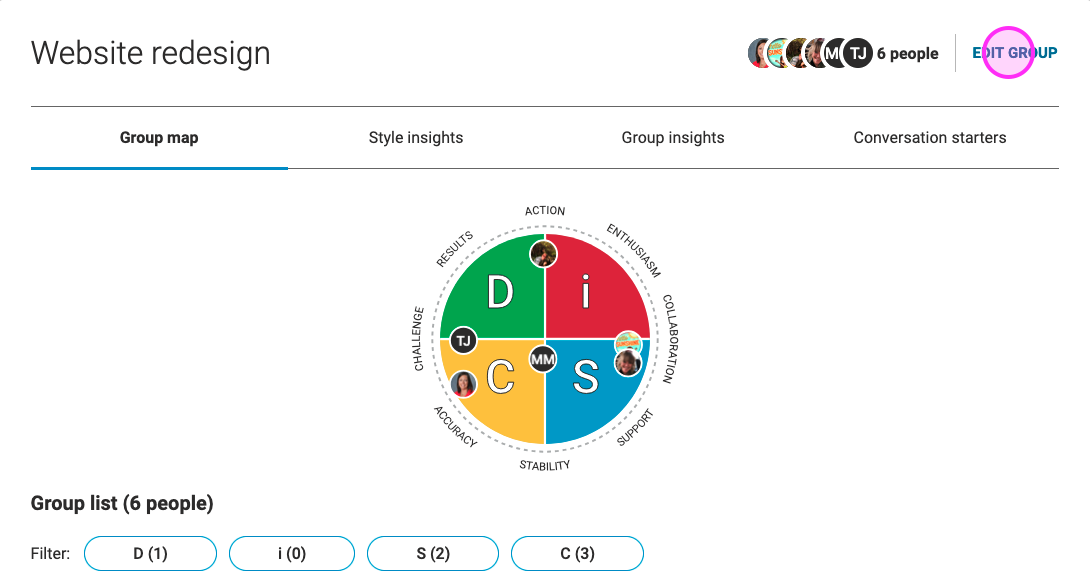
- You can edit a group by selecting Edit group from the top right when you are viewing that group.
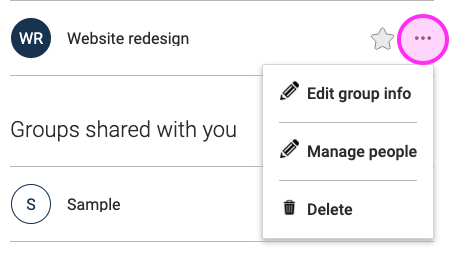
- Or, locate the group under Your groups in the left-hand menu and select the … (three dots) to the right of the group name. That will give you the option to edit the group's information, manage who is in the group, or delete the group.