Hiding and revealing styles in Catalyst

Some facilitators enjoy having the ability to deliver results to learners immediately after they complete their assessments. It promotes focus on the session's material and prevents people from reading through their reports while the facilitator is delivering information and instructions. 

Other facilitators prefer to hold learners' style results until the training session. They may want to give some context or set expectations before giving learners their results.

Regardless of what you prefer, you can easily hide and reveal your learners' profile information within the Catalyst Administrator Experience.

The instructions below use the admin functions in Catalyst (rather than EPIC). See how to activate Catalyst admin functions.

Instructions

Reveal or hide styles when assigning access codes

  1. Navigate to https://catalyst.everythingdisc.com/admin/organizations and select the Organization you would like to add a learner to.Catalyst help: adding learners one by one
  2.  Click Add. Catalyst help: adding learners one by one
  3. Fill in name and click Add.Catalyst help: adding learners one by one
  4. Select whether you want your learners to get immediate access to their profiles with the Reveal style toggle. When Reveal style is selected, learners will discover their style on Catalyst right after they complete their assessment. When it is not selected, styles information will be hidden until you choose to reveal it to your learners. You can also do this when importing a bulk list of learners
  5. Repeat step 3 for each learner you want to add. Once you have all the learners you want to add on this list, click Add learners.Catalyst help: assigning access codes one by one
  6. Once you've finalized your module selections, click Unlock content.Catalyst help: assigning access codes one by one
  7. You can use the email options to  specify when you want the email with the learner's access code to be delivered. You can also select if you would like a reminder sent to those who have not completed their assessments by a specific date. Type any additional information you want to include in this email in the Custom message box. 
  8. Click Send assessments.
  9. Double-check to ensure all your learners are added, and the transcation details look correct. Then click Confirm transaction. Catalyst help: assigning access codes one by one
  10. Click Done.

Catalyst help: assigning access codes one by one


Reveal or hide styles after access codes are sent out

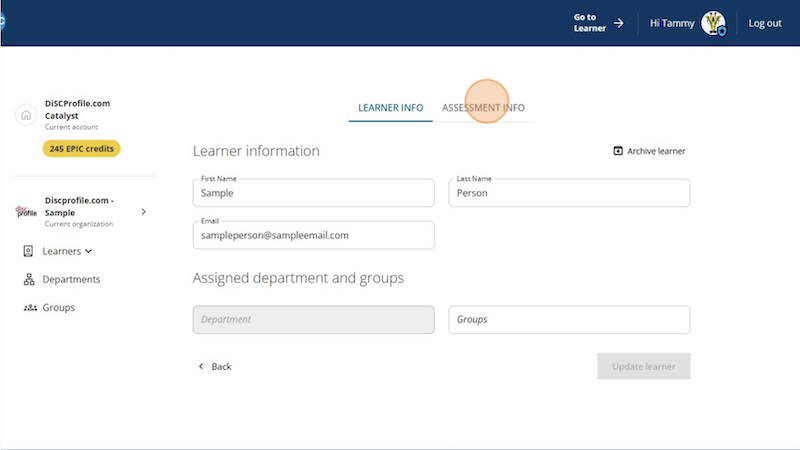
  1. Navigate to https://catalyst.everythingdisc.com/admin/organizations
  2. Select the organization that your learners are in
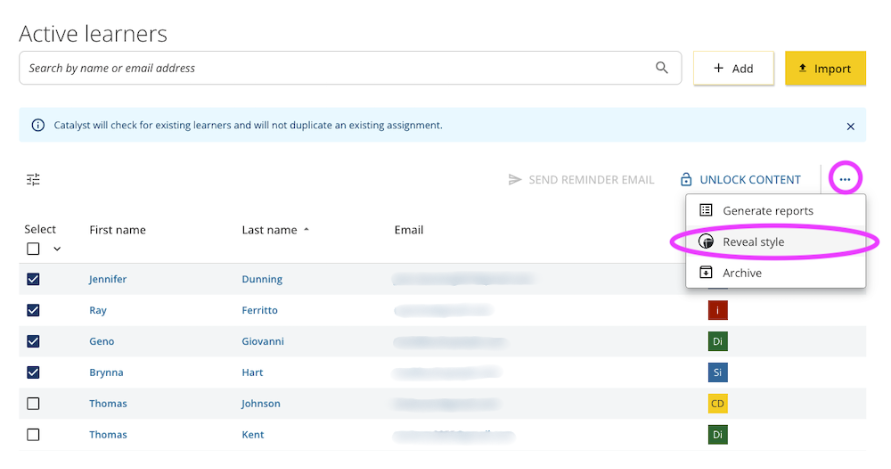
  3. Check the box next to the name of the learner whose style you want to reveal to selelct them. You can select multiple learners if you want to reveal multiple learners' styles at the same time. 
  4. Select the three dots in the upper right corner of the page. 
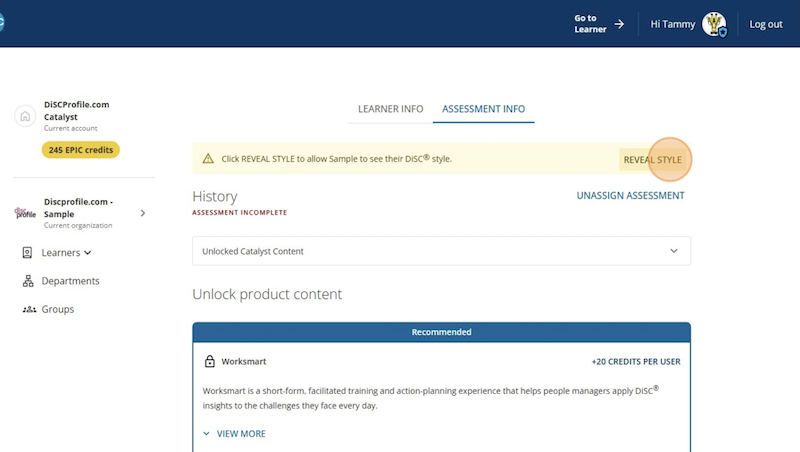
  5. Click Reveal style.
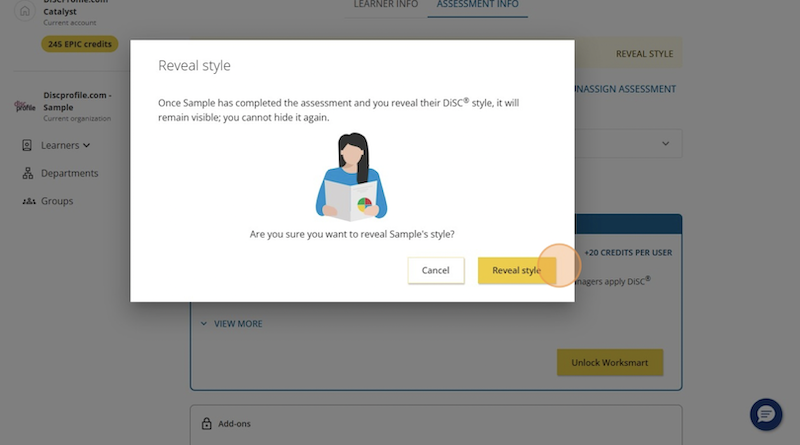
  6. Select Reveal style
  7. Then, in order to see their colleagues' styles, your learners will have to log into their Catalyst accounts.
  8. Have them navigate to Your colleagues
  9. At the top of the page, select Share with colleagues