


Changing privacy settings in Catalyst
To get the most out of the Everything DiSC® on Catalyst™ experience, we recommend that all learners share with colleagues on the platform. However, learners who are not comfortable sharing this information can opt out via a privacy feature in their account settings.
Instructions
- Log in to Catalyst and select Account settings from the menu on the left.
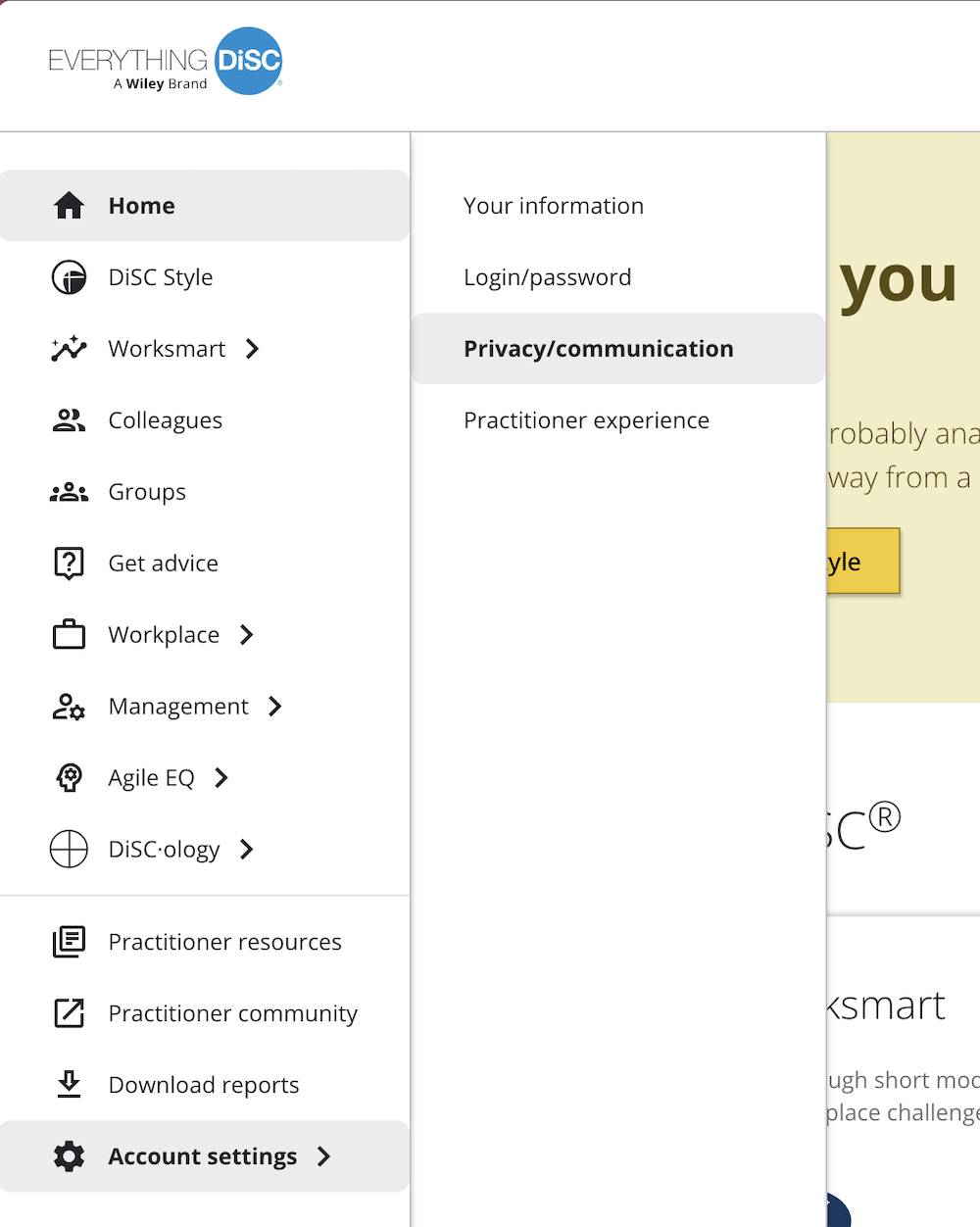
- Click on Privacy/communication.
- Set Share with colleagues On or Off.
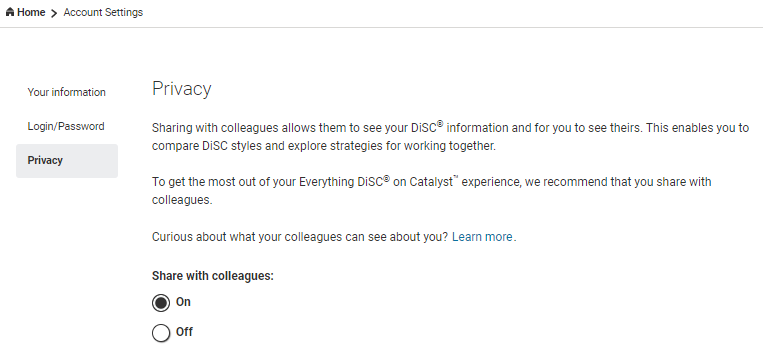
If you turn off “Share with colleagues,” you will disable the “Your colleagues” feature and your colleagues will be unable to find you in the system. You will also be unable to view information about them. Your colleagues will not be able to create and save groups that include you.
Your information will still be visible to your Catalyst administrator(s).
Facilitators: If a learner opts out of sharing, it may have implications for activities in facilitated sessions. Wiley has provided guidelines to help you navigate these issues for the Fundamentals Module 2: Finding Common Ground Activity: Impact of Learner Privacy Feature on Facilitation (PDF).