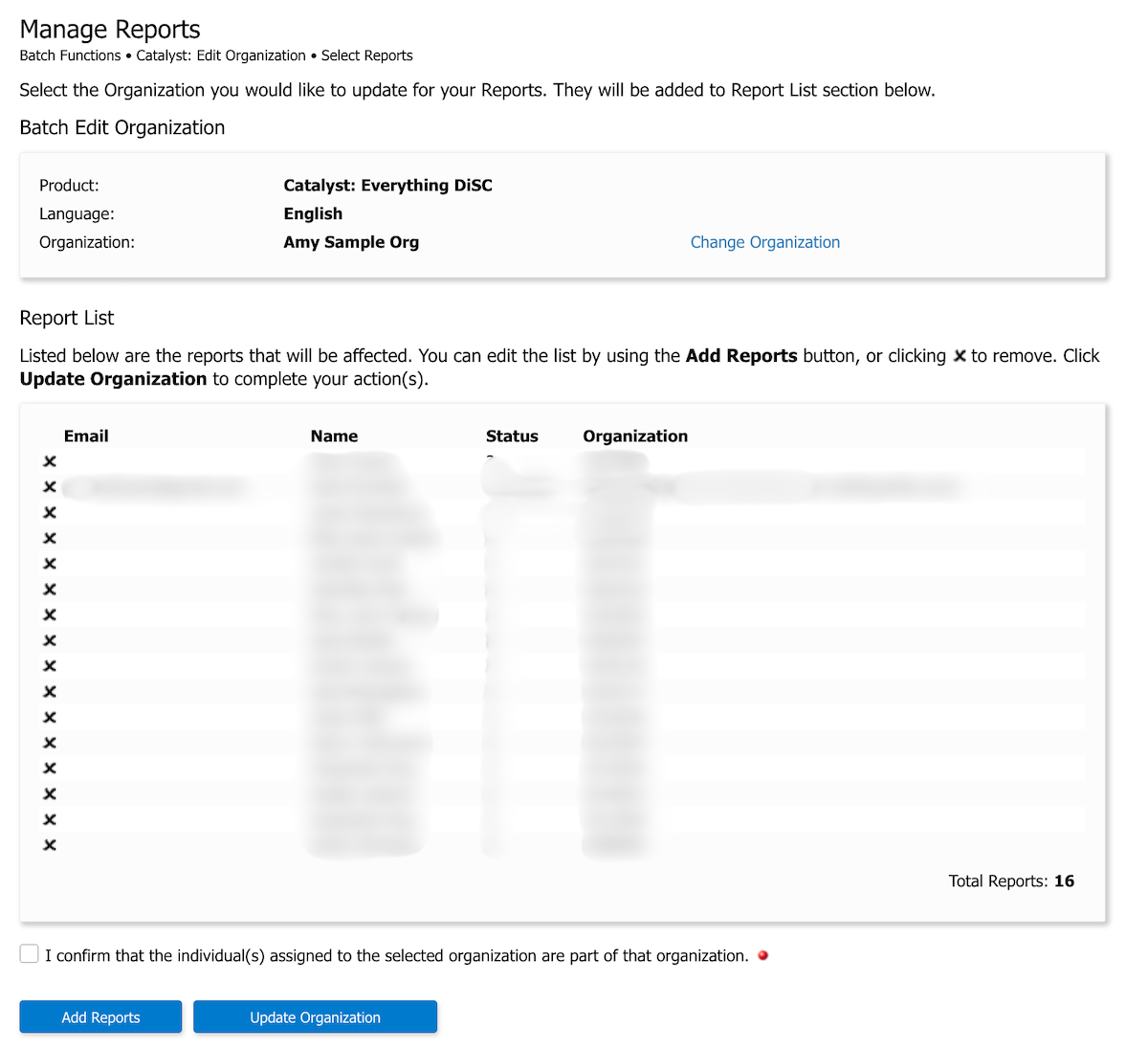


Moving learners between Catalyst organizations in bulk
You can move learners between organizations one by one using the Catalyst admin view. But to move learners in bulk, you'll need to use EPIC.
Instructions
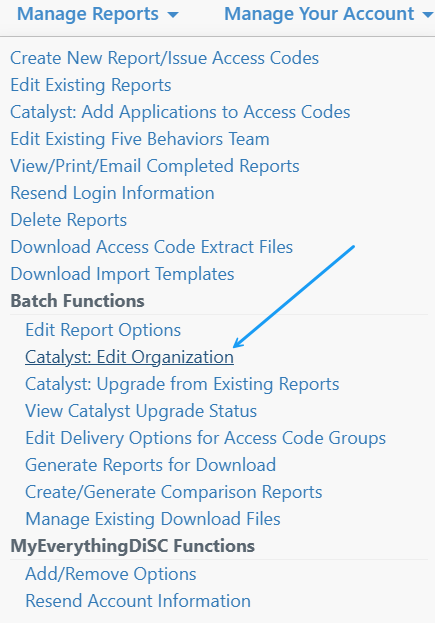
- Choose Manage Reports > Batch Functions > Catalyst: Edit Organization
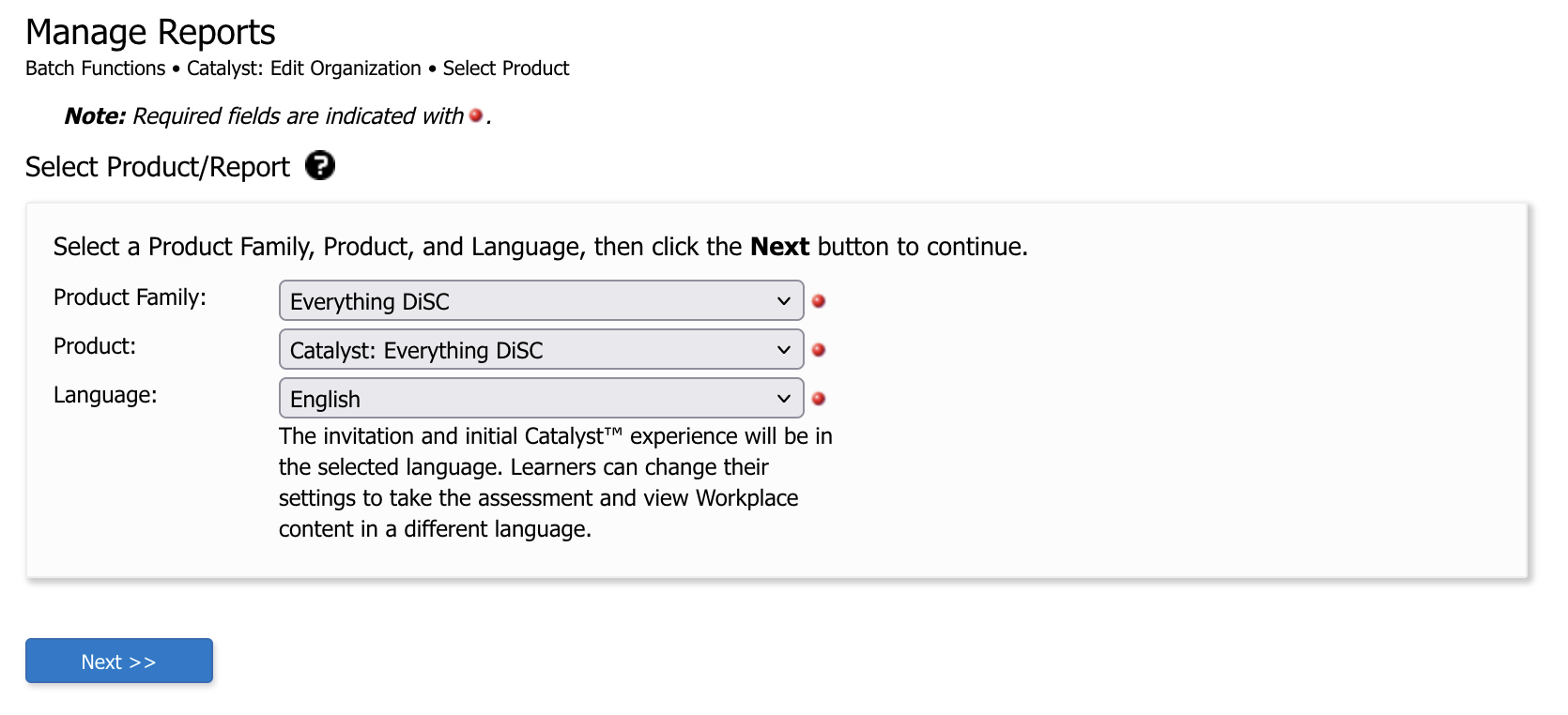
- Edit the Product Family, Product, and/or Language, if needed. Click Next.
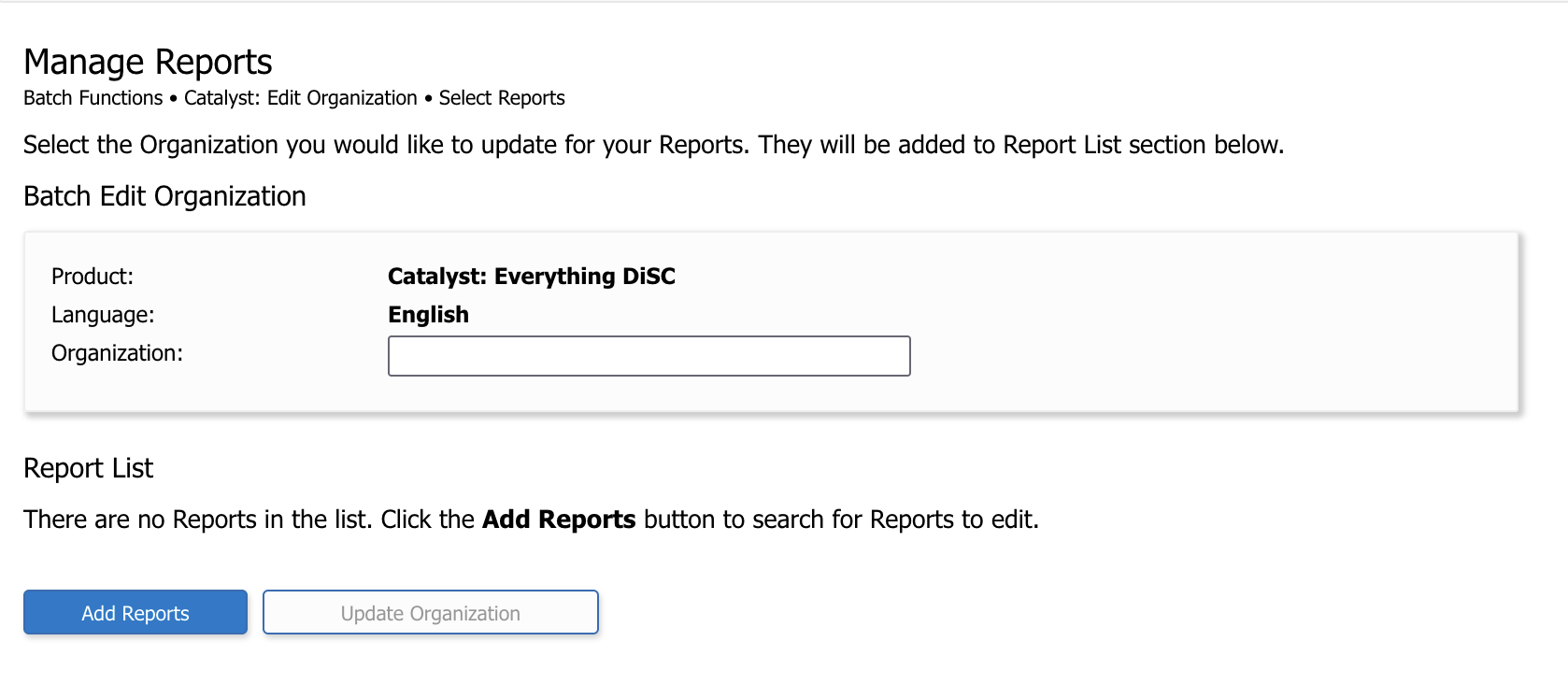
- Select the organization to which you'd like to move learners. Available organizations will autocomplete as you start typing. You can also create a new organization from this screen. Then select Add Reports.
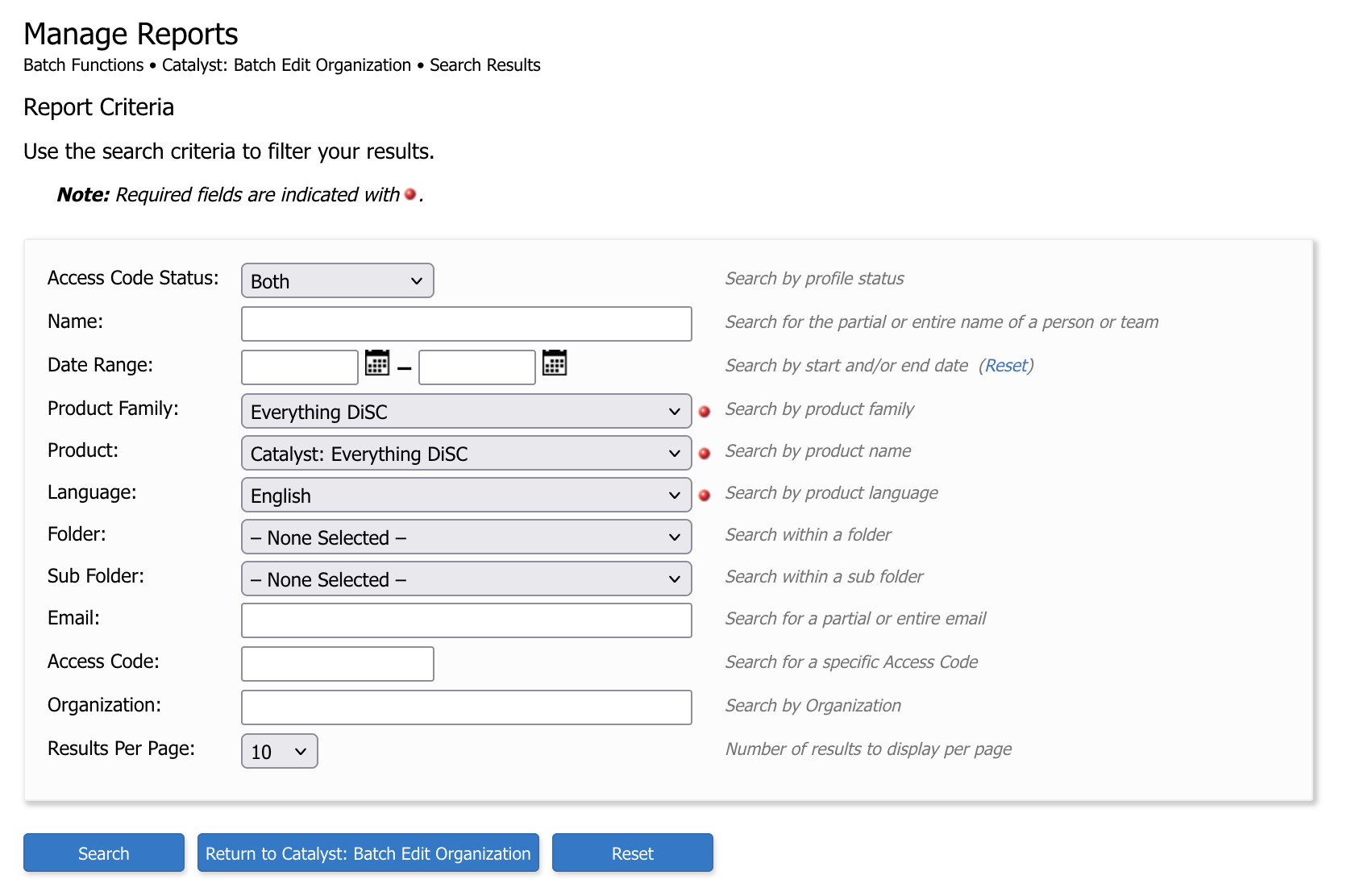
- This will bring up a search screen where you can locate your learners by date range, folder, or other criteria. Enter your criteria and select Search.
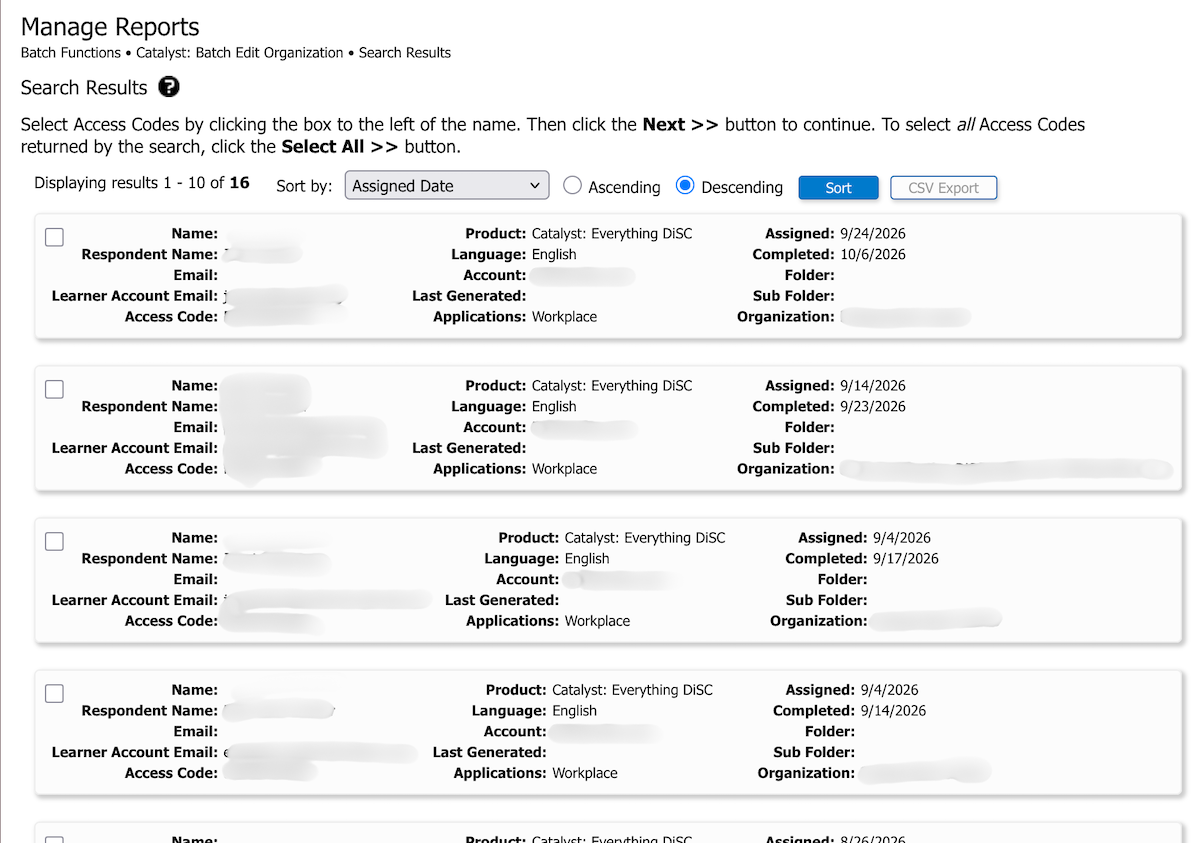
- Select your learners from the results. You can select learners individually using the check box by their record or Select All using the button under the results list.
- Double-check your list. If you have more learners to add, select Add Reports and go through the search screen again. To remove learners, click the X by their name. Otherwise, confirm your choices and select Update Organization.